Billing a visit
When your account was created, a starter price list was set up for your clinic — Exam $60, Vaccination $35, Follow-up $30, Surgery $150 — and every appointment you book picks one of those services, so the price is attached before anyone bills. You can change any of those prices yourself, any time — see Your price list below.
Bill a booked visit
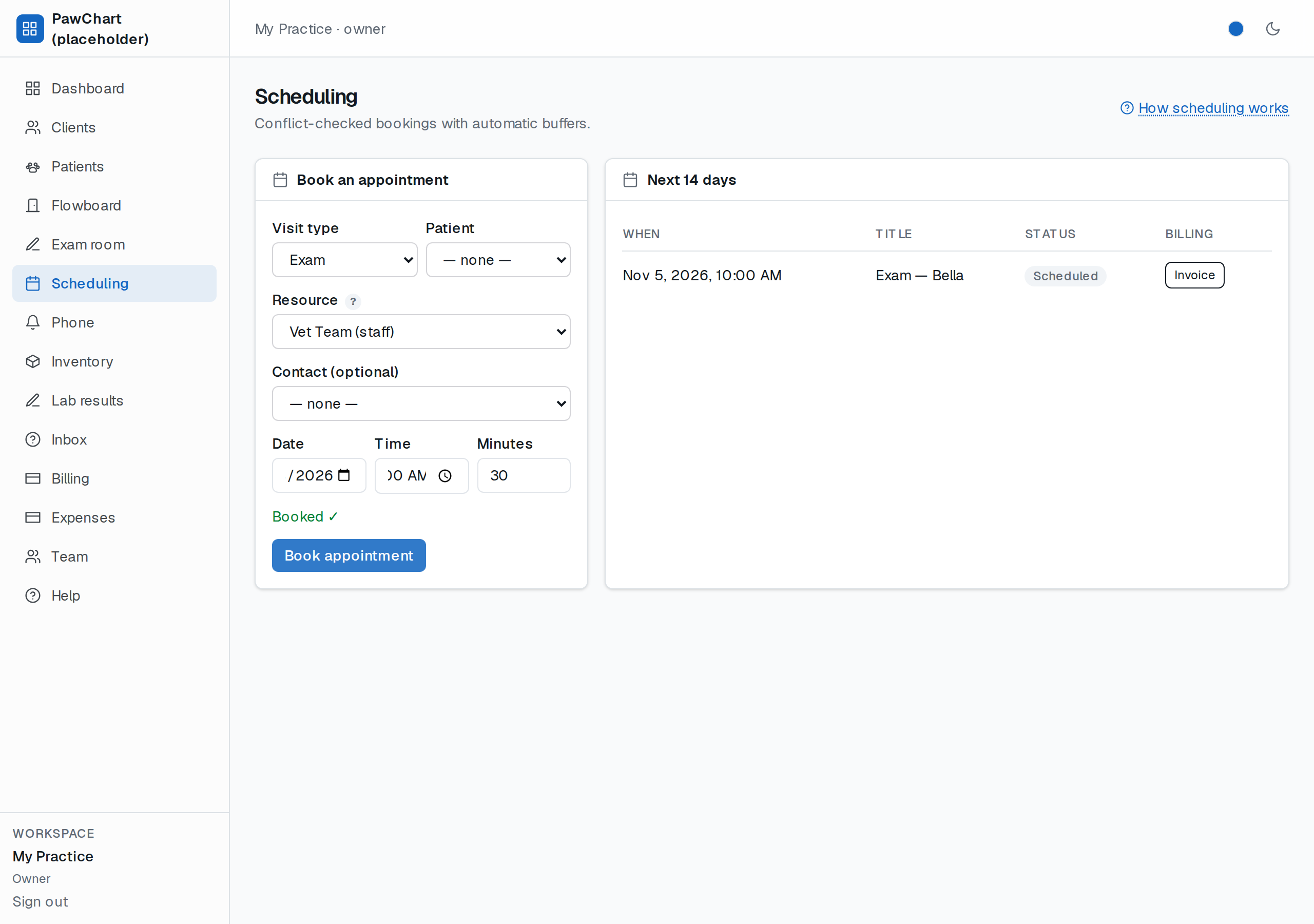
1. Open Scheduling. Every booked patient visit in the *Next 14 days* table has an Invoice button.
2. Click it — one invoice (`INV-2026-0001…`) is created for that visit's client: a single line at the booked service's price, tax added automatically for your province. Totals are always computed server-side from the price list — never typed in, so nothing can be mistyped.
3. The row then reads invoiced — clicking again can't double-bill a visit.
Write an invoice without a booking
On the Billing screen, the Create invoice card does the same job by hand: pick the client (the “Contact” dropdown), tick the services and quantities you need, and create. Same server-computed math.
Your price list
The Price list card on the Billing screen is your price book — you never have to call anyone to change it:
- Change a price or name — type the new value in the item's row and press Save.
- Add a service — fill *New item name* and *$ price* at the bottom of the card and press Add item.
- Stop offering a service — press Hide from new invoices. It disappears from booking and invoicing, but invoices already issued are untouched: each invoice keeps the prices it was billed at. Restore to new invoices brings it back.
Price edits apply to new bookings and invoices from that moment on.
Taking payment
Every unpaid invoice in the Invoices table carries its own payment form:
1. Amount — type what the client is handing you, or leave it blank to collect the full balance due. Partial payments are normal: the invoice shows partial and its paid amount until it's settled, and an overpayment is trimmed to the balance instead of marring the record.
2. Method — pick cash, check, card or transfer, and optionally a reference (cheque number, card last-4, auth code).
3. Press Record payment. The invoice's status is derived from the money on it — it can never say *paid* when it isn't.
Refunds — on any invoice with money collected, the form under it refunds the whole amount or just part of it. A refund is recorded as its own negative entry, so the money trail stays straight, and the invoice falls back to *partial* or *open* accordingly.
Discounts — the Create-invoice card takes a discount as a percent or a flat amount, and asks *where* it comes off: off the subtotal (tax shrinks with it — the usual choice where tax follows price) or off the total (a straight reduction of the taxed bill). The math runs on the server against the price list, so the printed total and the tax filed on it always agree, and the discount appears on the invoice as its own line.
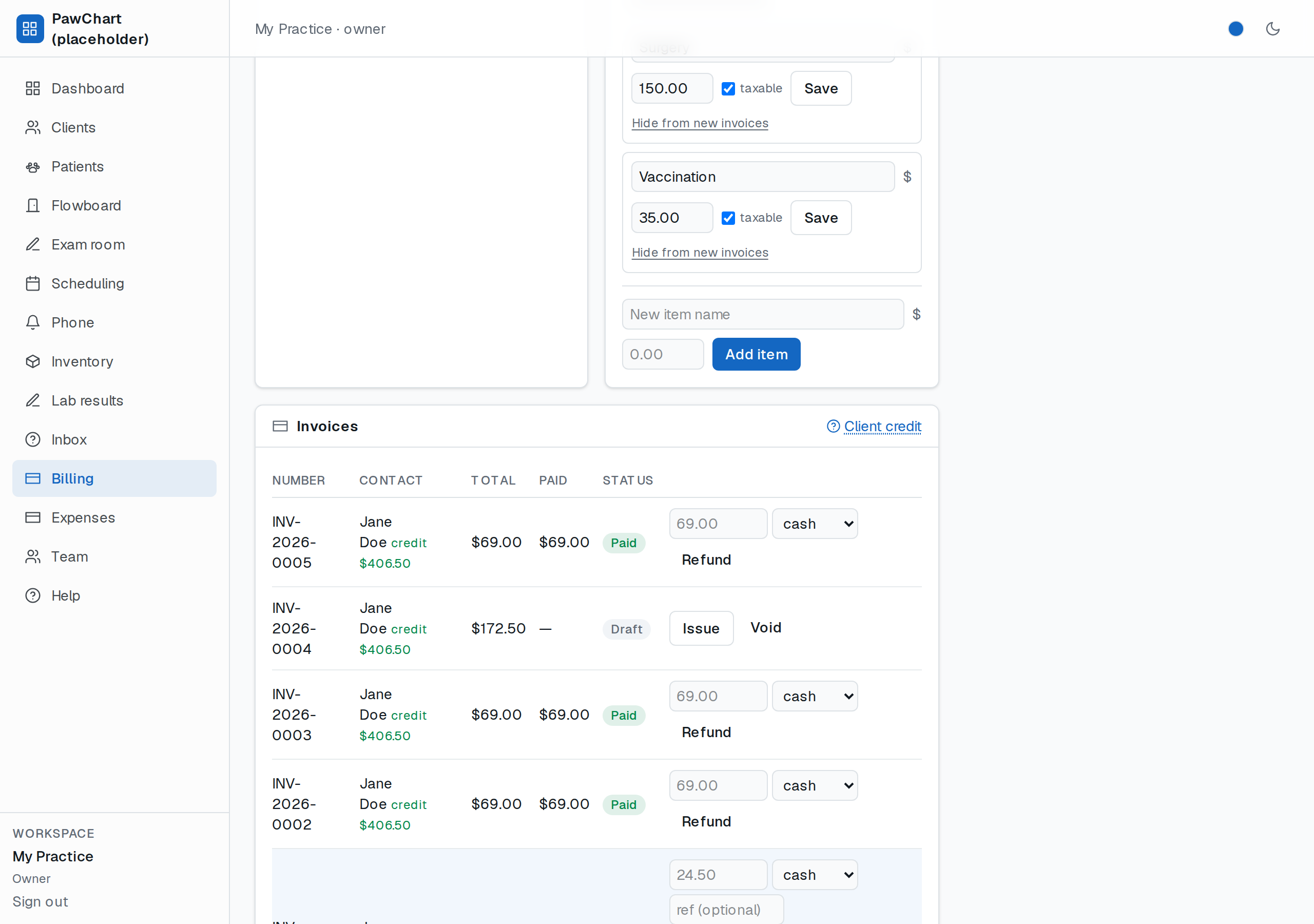
*The Billing screen: the Create-invoice card, and the Price list card — edit names/prices, add items, hide or restore them.*
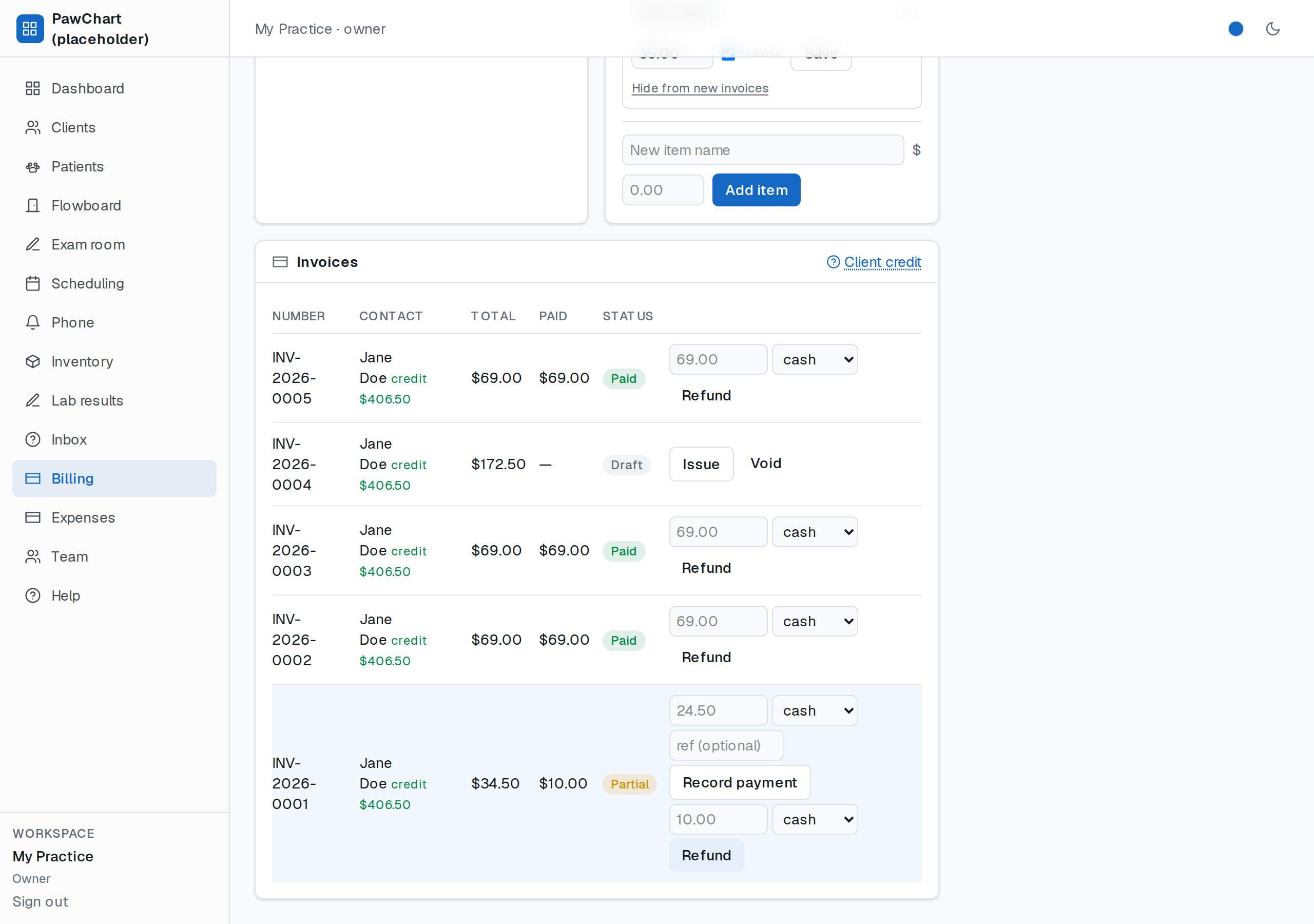
*An invoice paid in part by card: Partial badge, the payment form (amount, method, reference) and its refund form.*
*Not yet billed:* bookings with no patient (walk-ins, deliveries) — create those from the Create-invoice card directly.